
Solved
icon missing from toolbar

How can I put the icon back into my toolbar? When I updated my browser, the icon disappeared.
Best answer by Ssherjj
Hello jancookz,
Welcome to the Webroot Community,
May I ask what browser you have updated? Also are you talking about Password Manager icon? if you are talking about Chrome,Firefox or/and Internet Explorer then please follow below. This is for a PC not a Mac. If for a Mac then please let me know.
Note:This will not work in Microsoft Edge. Webroot is currently workng on a fix for this.Here is a KB article about ths HERE
This sometimes does happen and to try to resolve it you can try running the Toolbarfix tool. You can download it for here. Once downloaded launch it by clicking on the executable, and you should see the following, and click on 'Run':
which should then take you to the following dialog:
on which you should choose/check the option 'Repair/Install the Webroot Toolbar' and then press 'Start'.
That should initiate the fix process and you just have to wait for it to finish, close the dialog and then check in your browser to see if the Password Manager Toolbar icon is now visible. If the fix has been successful you should see the following greyed out icon in a toolbar at the top of the IE browser page:
One then double cliks on that so that the login dialog is presented, etc.
Please check the above out and come back if anything is not clear or if it does not help/respond to your query.
Welcome to the Webroot Community,
May I ask what browser you have updated? Also are you talking about Password Manager icon? if you are talking about Chrome,Firefox or/and Internet Explorer then please follow below. This is for a PC not a Mac. If for a Mac then please let me know.
Note:This will not work in Microsoft Edge. Webroot is currently workng on a fix for this.Here is a KB article about ths HERE
This sometimes does happen and to try to resolve it you can try running the Toolbarfix tool. You can download it for here. Once downloaded launch it by clicking on the executable, and you should see the following, and click on 'Run':
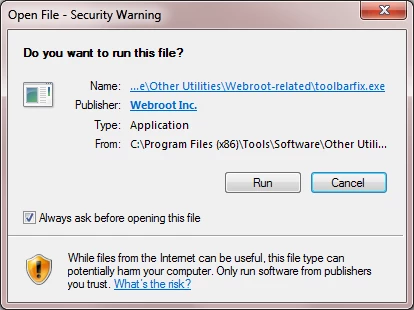
which should then take you to the following dialog:
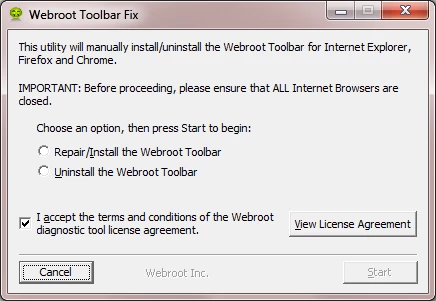
on which you should choose/check the option 'Repair/Install the Webroot Toolbar' and then press 'Start'.
That should initiate the fix process and you just have to wait for it to finish, close the dialog and then check in your browser to see if the Password Manager Toolbar icon is now visible. If the fix has been successful you should see the following greyed out icon in a toolbar at the top of the IE browser page:
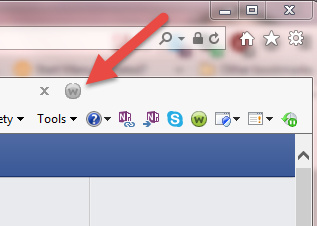
One then double cliks on that so that the login dialog is presented, etc.
Please check the above out and come back if anything is not clear or if it does not help/respond to your query.







Login to the community
No account yet? Create an account
Enter your E-mail address. We'll send you an e-mail with instructions to reset your password.