No "Commands" tab appears on my MAC when I select a PC in the PC Security window.

  • February 20, 2015
  • 2 replies
  • 40 views

Selecting a PC opens a widow with only two tabs:  "about" and "scan information"; there is no "Commands" tab.  What gives and what am I supposed to do?

2 replies

Ssherjj
Moderator
Forum|alt.badge.img+62
  • Moderator
  • February 20, 2015
Hello ackleyh,
 
 
Did you ever create an online Account Console? Please look here and create one. Are you trying to deactivate you Mac?
 
If you are having troubles then I suggest you issue a Support Ticket and they can assit you in this matter.


Kind Regards,


Baldrick
Gold VIP
  • Gold VIP
  • February 21, 2015
Hi ackleyh
 
Welcome to the Community Forums.
 
I believe that you issue is due to the permissions set on your account so please do the following:
 
1. Log into your web console (here), and once logged into the main panel click on your email address situated in the top right hand corner of the panel.
 
2. Select 'Account Settings', from the dropdown menu presented.
 
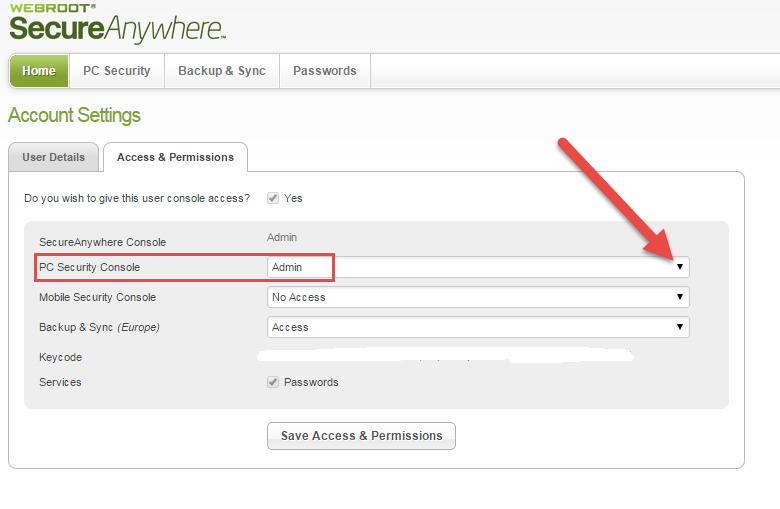
3. Under the 'Access & Permissions' sections of the page displayed locate the 'PC Security' options and check to see what the access level is...for what you are looking for it should say 'Admin'.
 
4. If it does not then click on the 'Change' link to the right of the status which should reveal a further page that look like this:


Again, select the dropdown arrow to the right of the status field against 'PC Security Console' and from the list displayed select 'Admin'.
 
5. Click on 'Save Access & Permissions', which should take yo back to the 'Account Settings' page.
 
6. From there click on the 'PC Security' tab in the header, which should show you the PC devices you have protected by WSA.  If you now click on the PC concerned you should now see the 'Commands' tab showing at the top of the pop up, next to 'About' & 'Scan Information.
 
I hope that sorts that out for you?  If not then please post back with details of what you are not seeing, etc. and we will try to help further.
 
Regards, Baldrick