Solved

Access Log Files on Mac macOS Sierra

  • February 1, 2017
  • 12 replies
  • 501 views

In another post is says to open WebRoot and select "System Tools"
Here on my MacBook I am not seeing "System Tools" - am I missing it, not looking in the right place?
 
WebRoot gives me reports and Details under Results, but the screen is too narrow to see the full filename of the offending file WebRoot is reporting on and the window cannot be expanded.
 
Is there a way to look at the complete log file to see exactly what WebRoot is reporting on?
In this case it seems that a bunch of files related to "...YahooCCT..." are the culprits.  


Best answer by Ssherjj

Hello mgolan
 
Welcome to the Webroot Community,
 
If I may add @?
 
Here is the Mac User Guide.
 
Hope this helps as well?

12 replies

  • February 1, 2017
Hi mgolan,
 
Welcome to the Webroot Community,
 
I'm not sure about Mac but for Windows you open WSA and click on the gear next to "Utilities". Then select the "Reports" tab. There you can save a threat log or scan log. Webroot will ask where to save the log and the log will display after you have chosen a location to save to.


Hope this info helps,
BD
 

Ssherjj
Moderator
Forum|alt.badge.img+62
  • Moderator
  • Answer
  • February 1, 2017
Hello mgolan
 
Welcome to the Webroot Community,
 
If I may add @?
 
Here is the Mac User Guide.
 
Hope this helps as well?

RetiredTripleHelix
Gold VIP
Forum|alt.badge.img+56
It would be nice to have this in the PC Client. ;)


Ssherjj
Moderator
Forum|alt.badge.img+62
  • Moderator
  • February 1, 2017
@ wrote:
It would be nice to have this in the PC Client. ;)


That would be pretty neat wouldn't it? 😃

  • February 1, 2017
@ wrote:
It would be nice to have this in the PC Client. ;)


Thanks for posting the Mac screen, Daniel. I see that there is a slight difference in the screens. Is there a way to save the Threat log on Mac? Just curious for future reference. ;)
 
Thanks for posting the user guide, Sherry.
 
BD

RetiredTripleHelix
Gold VIP
Forum|alt.badge.img+56
@ wrote:
@ wrote:
It would be nice to have this in the PC Client. ;)


Thanks for posting the Mac screen, Daniel. I see that there is a slight difference in the screens. Is there a way to save the Threat log on Mac? Just curious for future reference. ;)
 
Thanks for posting the user guide, Sherry.
 
BD
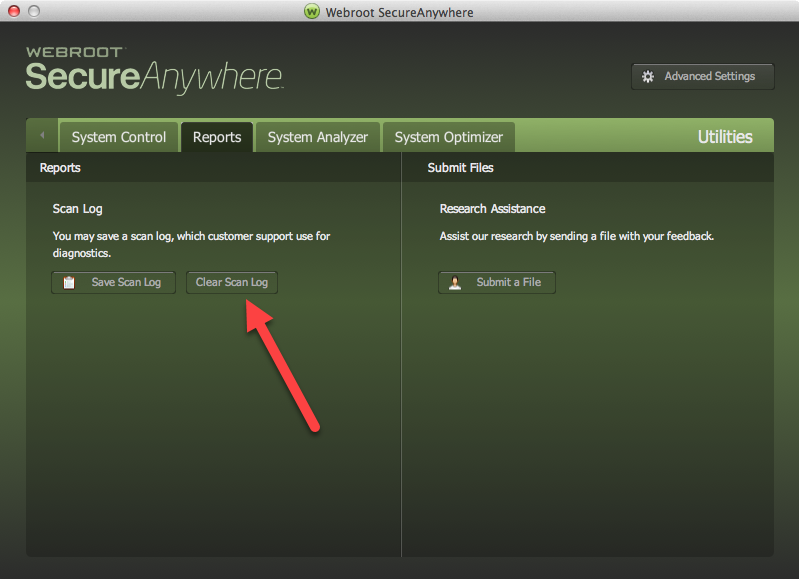
I got it from the link Sherry supplied! Also any threats would be listed in the Scan log just like the PC version.

Baldrick
Gold VIP
  • Gold VIP
  • February 1, 2017
Feature Request Time...don't all rush to it! ;)
 
http://i.imgur.com/GXsQrVv.gif

ProTruckDriver
Moderator
@ wrote:
@ wrote:
@ wrote:
It would be nice to have this in the PC Client. ;)


Thanks for posting the Mac screen, Daniel. I see that there is a slight difference in the screens. Is there a way to save the Threat log on Mac? Just curious for future reference. ;)
 
Thanks for posting the user guide, Sherry.
 
BD
I got it from the link Sherry supplied! Also any threats would be listed in the Scan log just like the PC version.
The only difference, on a Mac the Log is wiped clean and started all over on a Reboot or when you shut down the Mac. 😠

  • February 1, 2017
Thanks for the Mac related info, everyone. I appreciate it.


BD

ProTruckDriver
Moderator
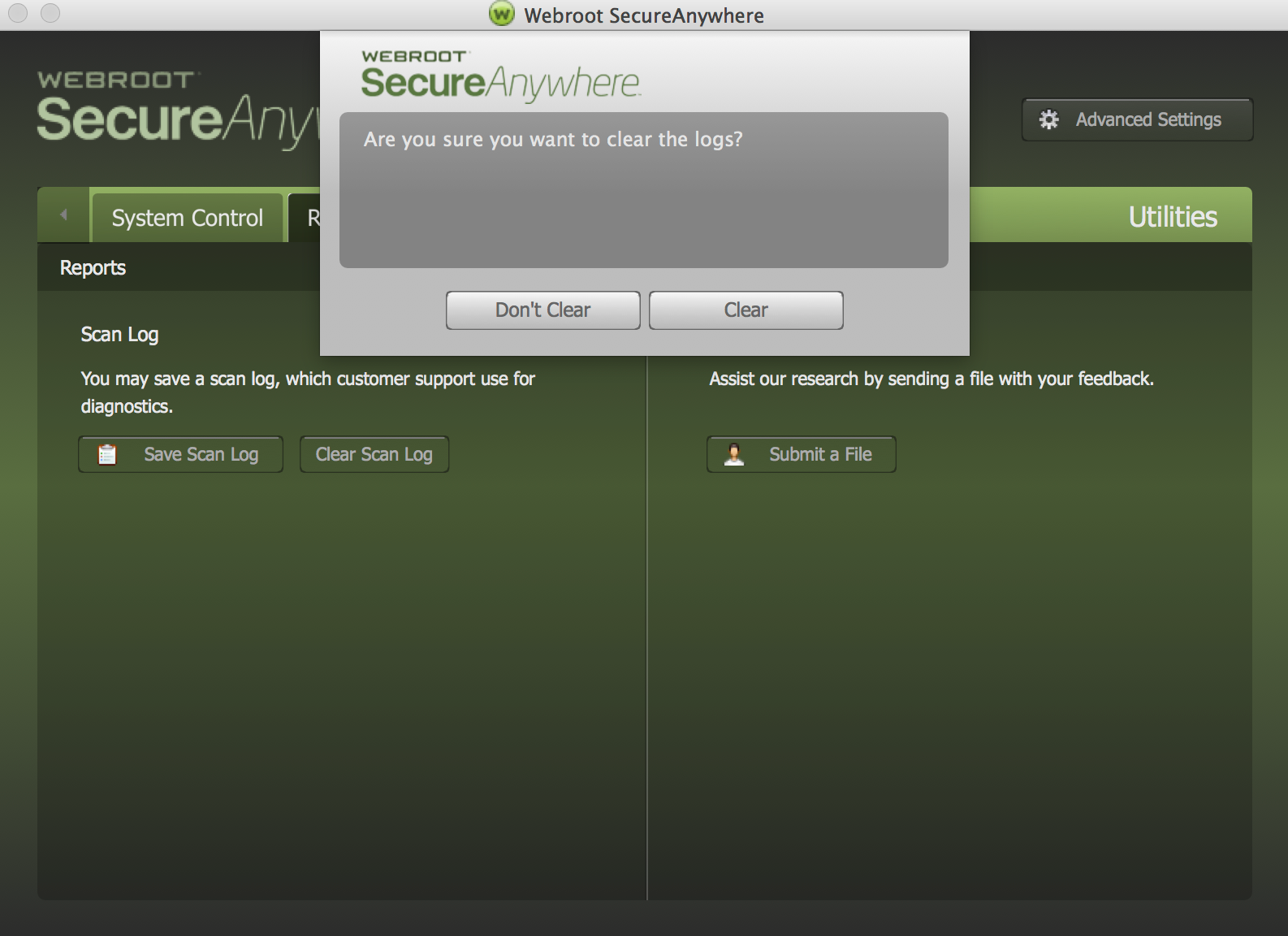
"Clear Scan Logs" Works on a Mac. Cleaned it right up. :D


RetiredTripleHelix
Gold VIP
Forum|alt.badge.img+56
@ wrote:
The only difference, on a Mac the Log is wiped clean and started all over on a Reboot or when you shut down the Mac. :@
 Really well then I will keep what we have for the PC. I just delete the WRLog.log in the WRData Folder when it gets to big hence Clear the Scan log. 😃

Ssherjj
Moderator
Forum|alt.badge.img+62
  • Moderator
  • February 1, 2017
@ wrote:
 
 
Thanks for posting the Mac screen, Daniel. I see that there is a slight difference in the screens. Is there a way to save the Threat log on Mac? Just curious for future reference. ;)
Thanks for posting the user guide, Sherry.
BD
@,
 
Yes there is a way to save the Threat Log:
 
If you want to investigate an infection with Webroot Support, you can save a threat log and send it to Webroot. The threat log shows details about threats removed from your Mac.

To save a threat log:
 
  1. Open the SecureAnywhere interface (click the Webroot icon [img]https://sw.nohold.net/Webroot/Images/wsa_icon.png[/img] in the menu bar, then select Open Webroot SecureAnywhere from the drop-down menu).  
  2. From the main window, click the gear icon next to Mac Security. [img]https://sw.nohold.net/Webroot/Images/macmainpanelclickmacsecuritygear.png[/img]  
  3. From the Mac Security panel, click the Quarantine tab. [img]https://sw.nohold.net/Webroot/Images/macquarantinetab2.png[/img]  
  4. In the bottom left, click Save Threat Log. [img]https://sw.nohold.net/Webroot/Images/macquarantinetab3.png[/img]  
  5. Select a folder location for the threat log and click Save.