

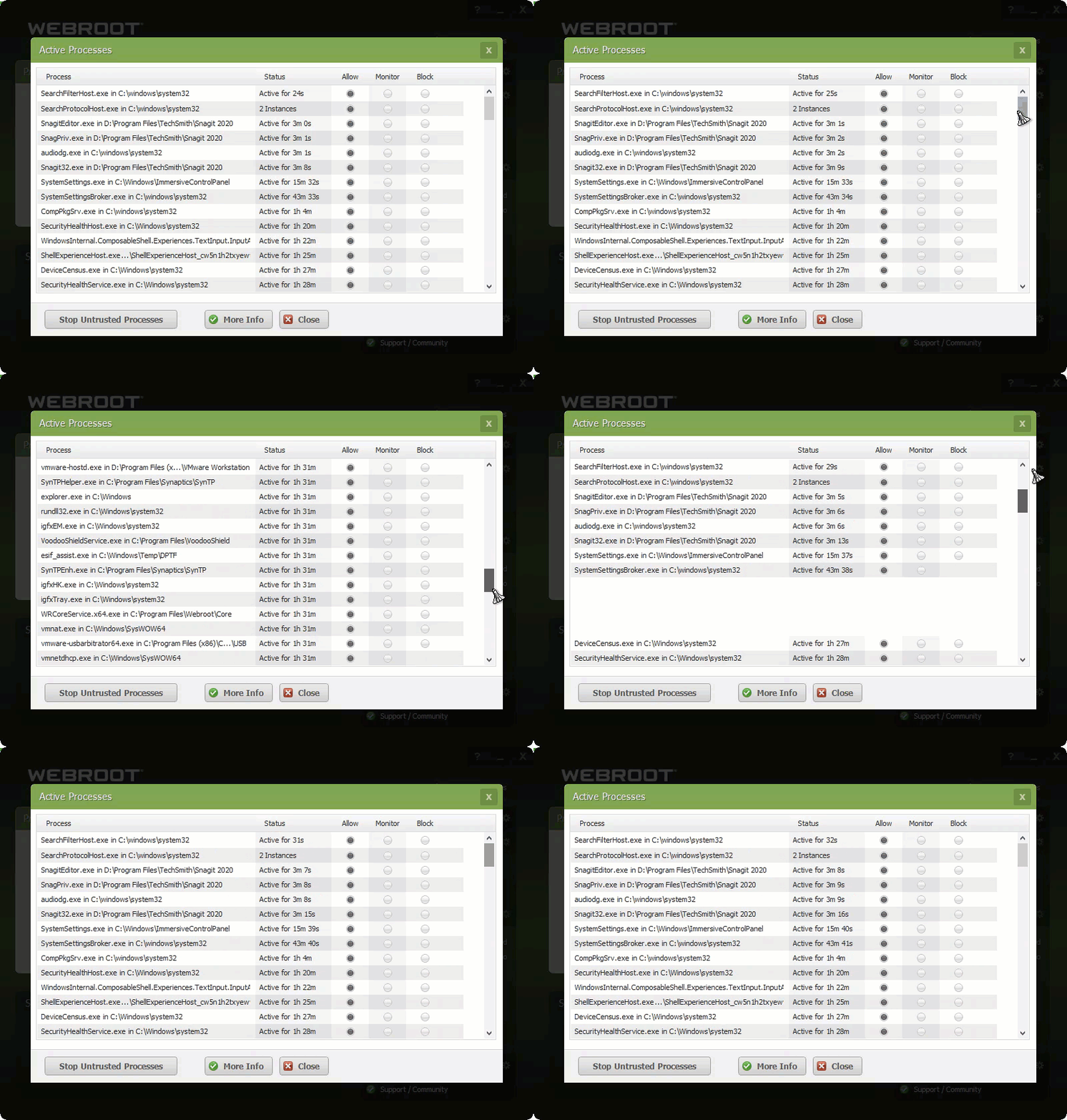
I note than there has been a complaint raised about this in the past, but what is the rationale for filtering the list of active processes? As a long-time user, I am losing confidence in WSA as sound software lately. The filtering of the active process list makes it difficult to assess if WSA is even aware of everything underway. Programs that have always produced process on the list no longer do so when launched, and I am unable to see any rhyme or reason to what is filtered and what is not.
Solved
"Active Processes " list
 +3
+3Best answer by TripleHelix
The list was not showing all active processes, and did not react to various processes being initiated. But I stumbled onto a cause I find rather unsettling. I logged onto the Webroot console. I discovered that this particular machine has been showing as infected there (the offender being ProcessHacker.) But local scans have shown nothing of the sort. ProcessHacker is installed on all five of my machines and marked as ‘Allow’ (I do understand why it is being flagged) but only this machine shows as infected on the console (it is the only machine running the Home version of Windows 10, but I doubt that is relevant.) Launching a scan from the console, the machine would come up as infected, but a local scan remained clean. I decide to try removing the ‘Allow’ entry in PC Security and then re-addding the file and marking it ‘Allow’. Having done that, the “Active Processes” list immediately returned to behaving normally. Launching a scan once again from the console then came up clean.
I don’t routinely log on to the console, which was the only indication (other than the strange behavior of the active process list) that anything was amiss. Frankly, I consider this pretty flaky.
All I can say is please Submit a Support Ticket to see what they see on your system, because when I check Task Manager everything looks good to WSA Active Processes! I find Process Hacker doesn’t show the true processes, but all not even active processes but inactive ones as well. I use to use Process Hacker and use Process Explorer from MS as it’s much better IMO: https://docs.microsoft.com/en-us/sysinternals/downloads/process-explorer
Thanks,
This topic has been closed for replies.




Login to the community
No account yet? Create an account
Enter your E-mail address. We'll send you an e-mail with instructions to reset your password.