
Just purchased/installed Webroot Secureanywhere for the first time. Immediately hit roadblocks when trying to use ServerPress DesktopServer to setup a import a site from a zip file, which requires that it modify the hosts file, which was denied. Can't find any information about how to get it to allow this.
Please help!
--Mark
Solved
denied modifications to hosts file
Best answer by RetiredTripleHelix
No there isn't it's either one way or the other. https://docs.webroot.com/us/en/home/wsa_pc_userguide/wsa_pc_userguide.htm#ShieldingYourPC/ChangingShieldSettings.htm%3FTocPath%3DShielding%2520Your%2520PC%7C_____2@ wrote:
Is there a way to set it so only certain programs can edit the HOSTs file?
- Do either of the following: [list]
- To enable a setting, select the checkbox.
- To disable a setting, deselect the checkbox.
SETTINGDESCRIPTION
Prevent interruption by intelligently suppressing warnings
Uses built-in intelligence to suppress warnings if they will interfere with operations.
Automatically quarantine previously blocked files
Remembers how you responded to an alert, that is, whether you allowed a file or blocked it. It won’t prompt you again when it encounters the same file but will take the same action as before, including sending it to quarantine if appropriate.
If you deselect this checkbox, SecureAnywhere opens an alert every time it encounters the file in the future.
If you blocked a file and want it restored, you can retrieve it from quarantine.
Check files for threats when written or modified
Scans any new or modified files that you save to disk.
If you deselect this checkbox, the system ignores new file installations; however, it still alerts you if a threat tries to launch.
Block threats automatically if no user is logged in
Stops threats from executing even when you are logged off. Threats are sent to quarantine without notification.
Warn if untrusted programs make core system changes when offline
Displays a warning if an untrusted program tried to change core system settings while you were offline.
Verify the integrity of the operating system
Checks the operating system for problems.
Silently and automatically block untrusted access to user data
Automatically prevents unknown programs from accessing user data.
Allow trusted programs to access protected data without warning
Allows access to user data for trusted programs.
Prevent any program from modifying the HOSTs file
Prevents any program from modifying your HOSTs file.
[/list]
- When you’re done, click the Save button.
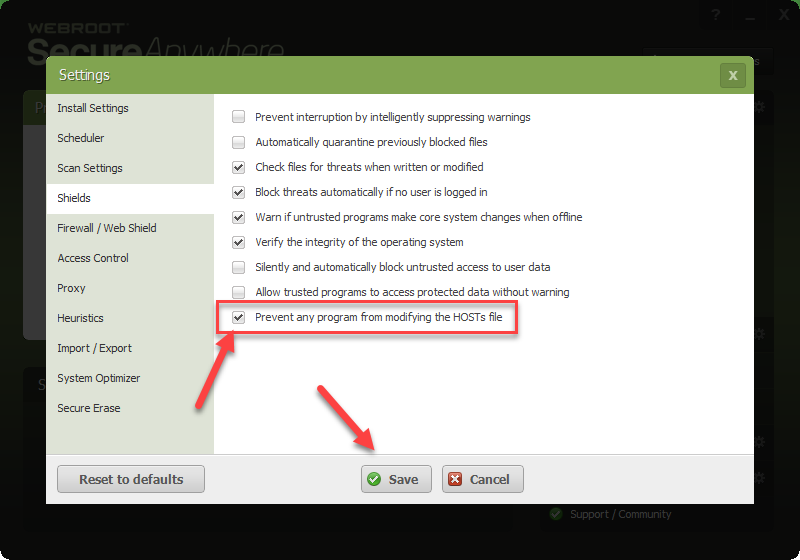
But if you use a Hosts File or a Host File Program just untick and save then update the Hosts then retick the box to protect the Hosts File once again.
TIA,
Daniel




Login to the community
No account yet? Create an account
Enter your E-mail address. We'll send you an e-mail with instructions to reset your password.