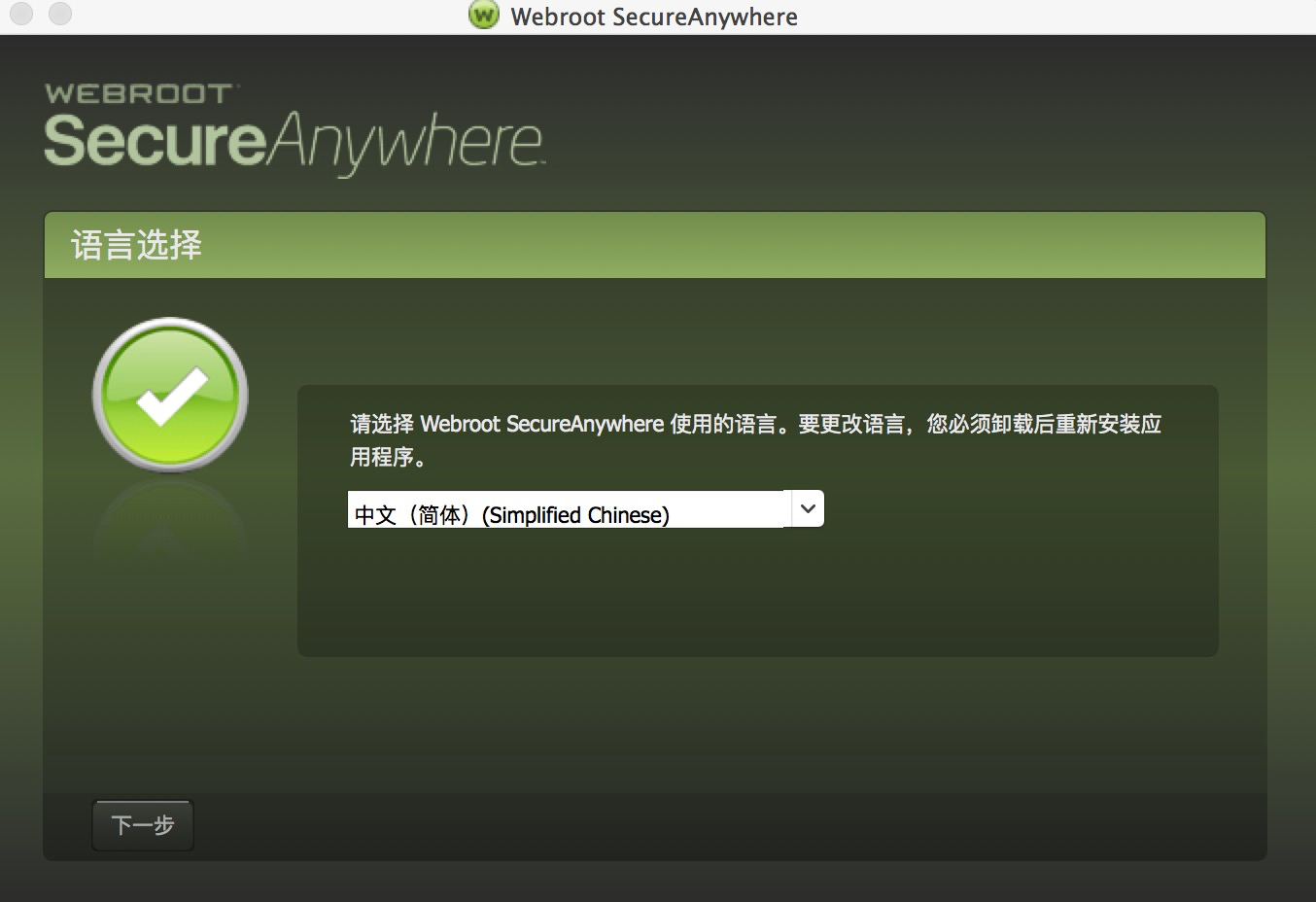
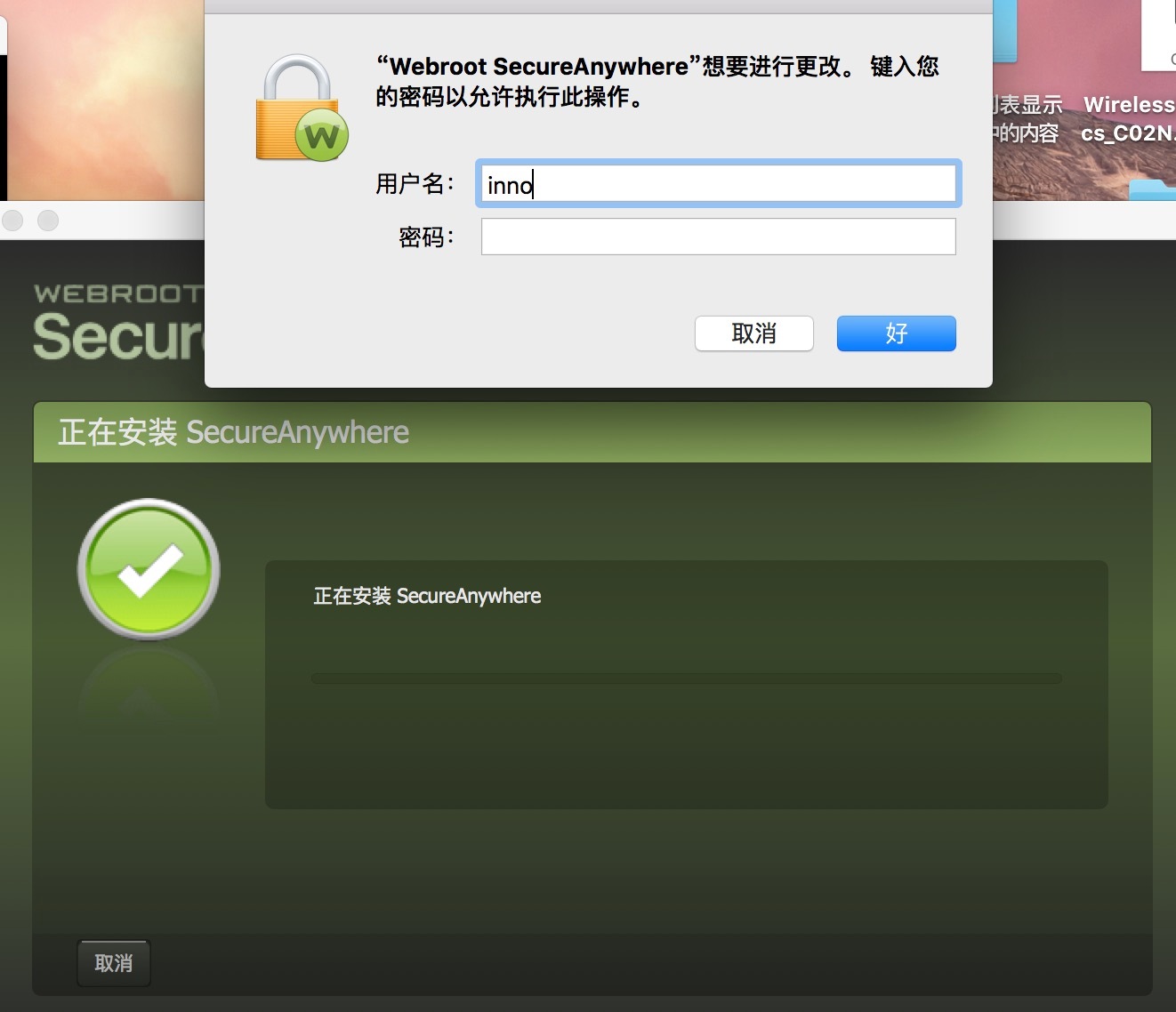
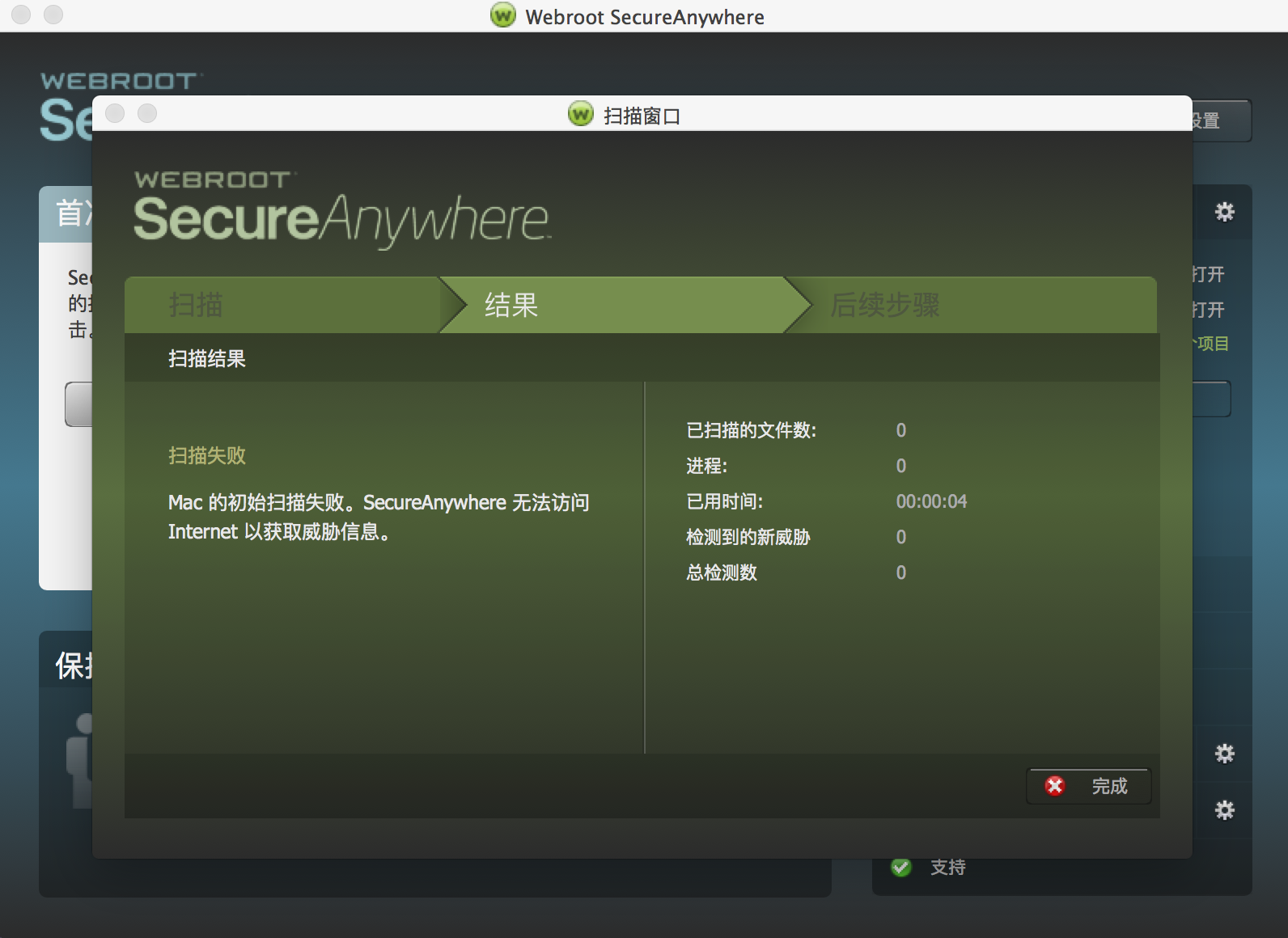
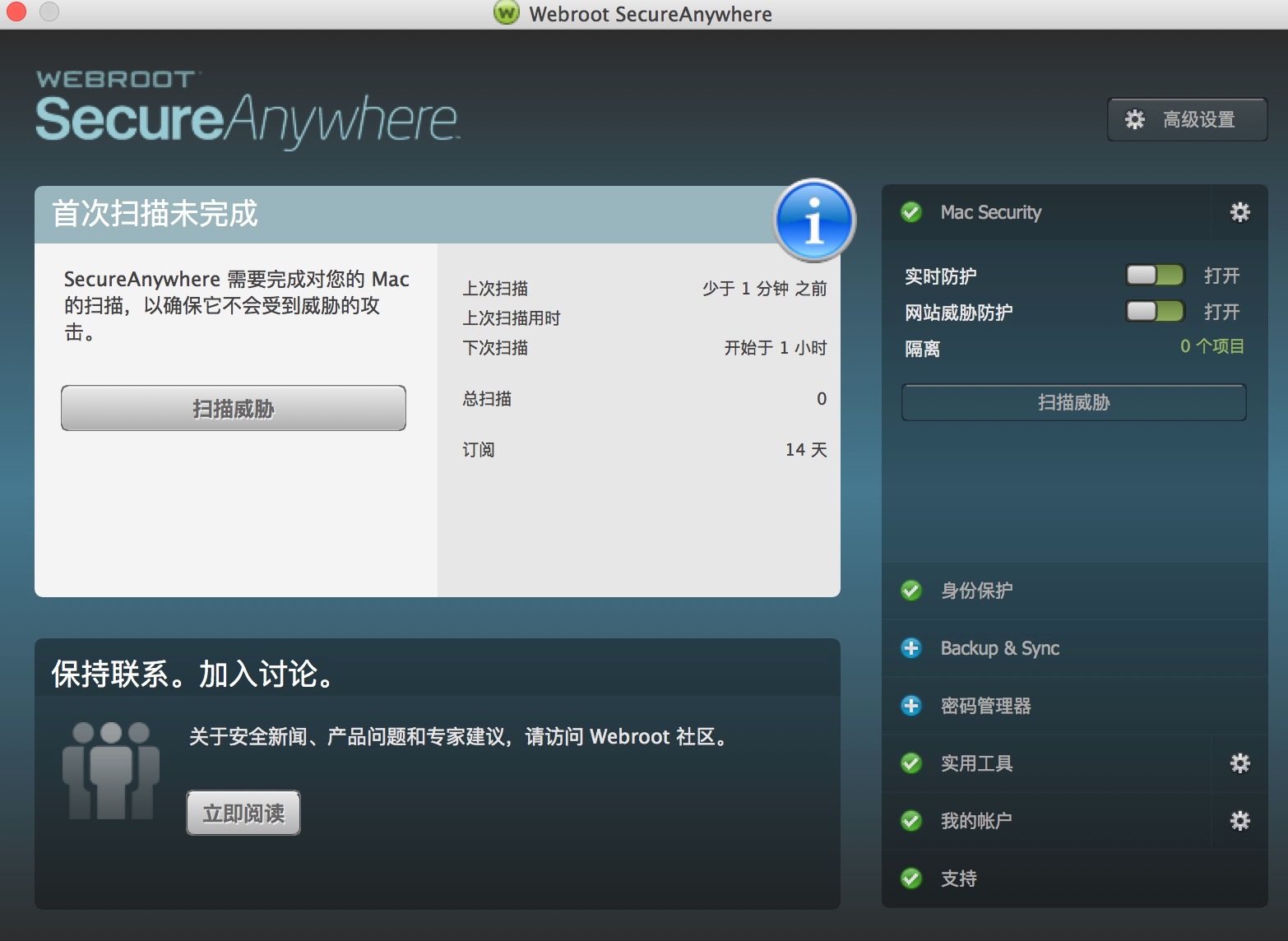
Would you reboot your Mac and see if Webroot will scan? Is this the first time installing Webroot?
If not then you can uninstall/reinstall Webroot if you find yourself technically inclined.
To uninstall Webroot SecureAnywhere, follow the instructions below.
Shut down SecureAnywhere by clicking the Webroot icon [img]http://sw.nohold.net/Webroot/Images/wsa_icon.png[/img] in the menu bar and selecting Shut Down SecureAnywhere.
[img]http://sw.nohold.net/Webroot/Images/macwebrootmenushutdown.png[/img]
If prompted, confirm that you want to shut down SecureAnywhere.
Open the Finder by clicking the Finder icon [img]http://sw.nohold.net/Webroot/Images/mac_finder_icon.png[/img] in the dock.
Open the Applications directory.
[img]http://sw.nohold.net/Webroot/Images/mac_click_applications.png[/img]
Click and drag the Webroot SecureAnywhere program icon into the Trash [img]http://sw.nohold.net/Webroot/Images/mac_trash_icon.png[/img] in the dock.
A confirming window appears. Click Uninstall.
[img]http://sw.nohold.net/Webroot/Images/macuninstallwsa.png[/img]
Webroot SecureAnywhere is now uninstalled. There is no need to restart your computer.
Reinstall Webroot
You can install SecureAnywhere on Mac OS X 10.7 and above. An Internet connection is required to install the software.
To install the software:
Click here to download the SecureAnywhere installer to your Mac. Or Click here if you have the Best Buy Geek Squad Subscription service.
Double-click wsamac.dmg to open the installer.
Drag the Webroot SecureAnywhere icon into the Applications folder.
[img]https://uploads-us-west-2.insided.com/webroot-en/attachment/20009i5A795A42A96979B5.png[/img]
In the first activation window, enter your keycode and click Activate.
[img]https://uploads-us-west-2.insided.com/webroot-en/attachment/20010iCE0F7E88D6A5794E.png[/img]
Your keycode is the 20-character license that identifies your Webroot account. If you purchased the product online, the keycode is provided in an email from Webroot. If you purchased the product in a store, the keycode is provided in the retail box. In addition, the keycode identifies whether you purchased a multi-user license, which allows you to install SecureAnywhere on up to three or five Macs.
If you want you can always Submit a Support Ticketfree of charge with a Webroot subscription. They will fix this for you.